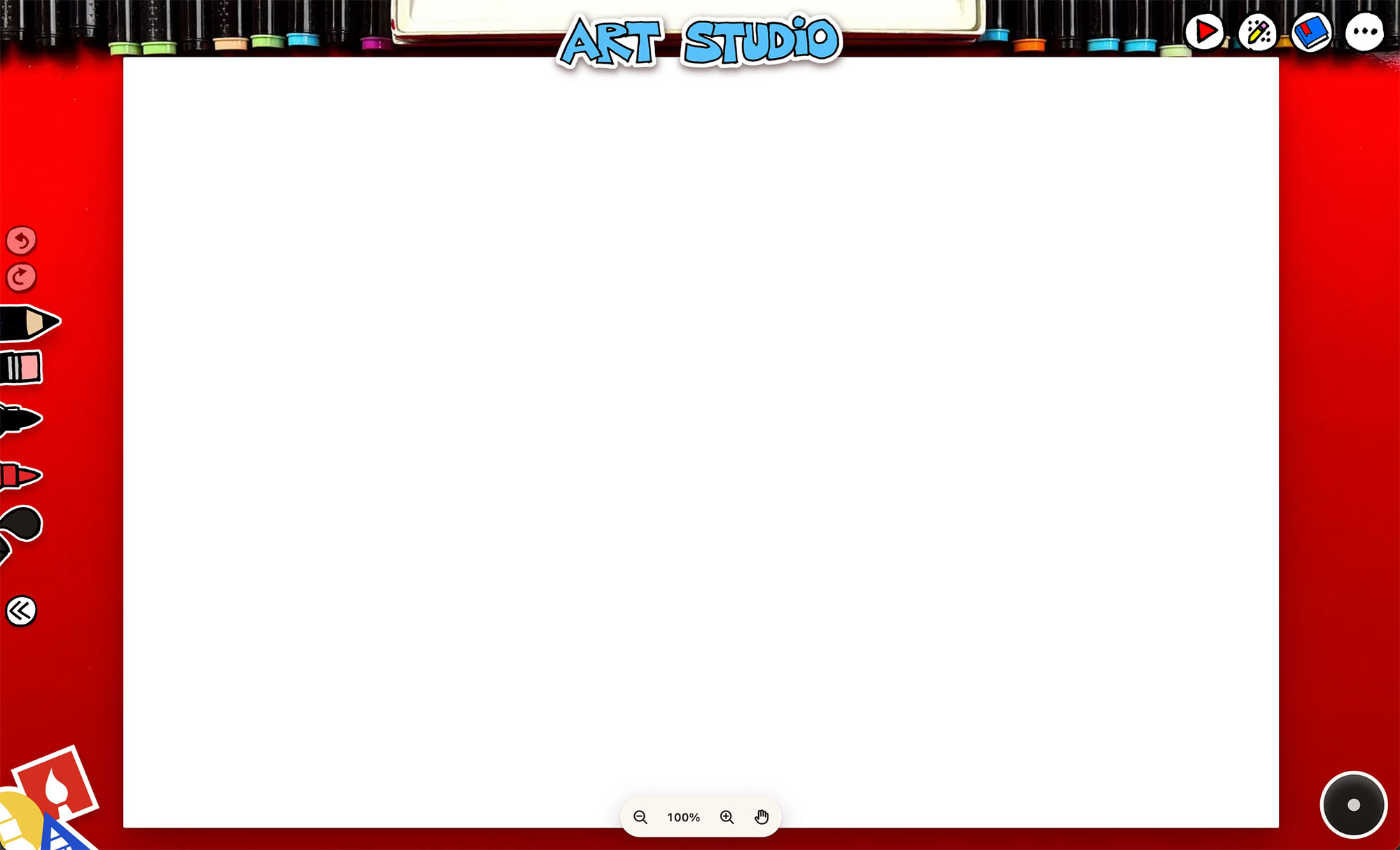
We made something new, and I can’t wait for your family to try it. It’s called the Art Studio, and it’s a drawing app that lives right in your web browser. No download, no account, no ads. Just go to artforkidshub.app and start drawing.
Quick note before we dive in, because I know this trips people up. We now have two different apps:
- The Art For Kids Hub app is our membership. You download it from the App Store or Google Play, log in, and get every one of our lessons ad-free. That’s at artforkidshub.tv.
- The Art Studio is the drawing app. You don’t install anything. You just visit artforkidshub.app in Safari or Chrome, on an iPad, a phone, or a computer.
They work great together (more on that below), but you don’t need one to use the other. The Art Studio is free for everybody.
Here’s a quick tour.
It’s our red table
When you open the Art Studio, you’ll see something familiar. It’s our table! Your paper sits in the middle, and your art supplies are tucked in along the left edge, just like they are when we film. Tap a supply and it slides out so you know it’s the one you’re holding.
We kept the supplies simple on purpose. There’s a pencil, an eraser, a black marker, color markers, and a paint bucket. That’s it. It’s the same stuff we use in every lesson, so if you can follow along with us on YouTube, you already know how to use this.
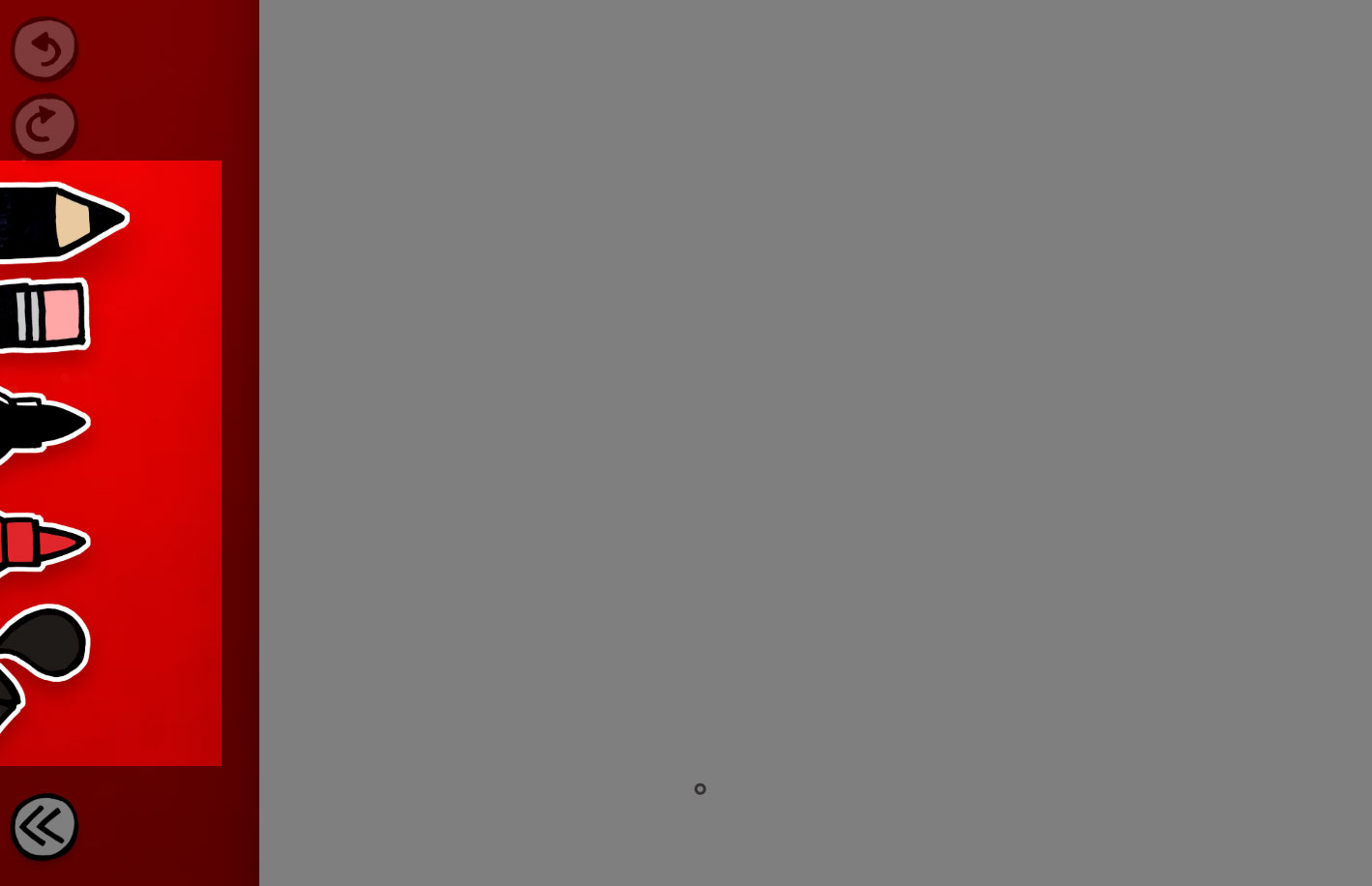
Step 1: Sketch with the pencil
Start with the pencil, just like we sometimes do. Draw light and loose. Don’t worry about making it perfect, because this is only the sketch.
If you’re on an iPad with an Apple Pencil, try tilting it. The side of the lead shades, just like a real pencil.
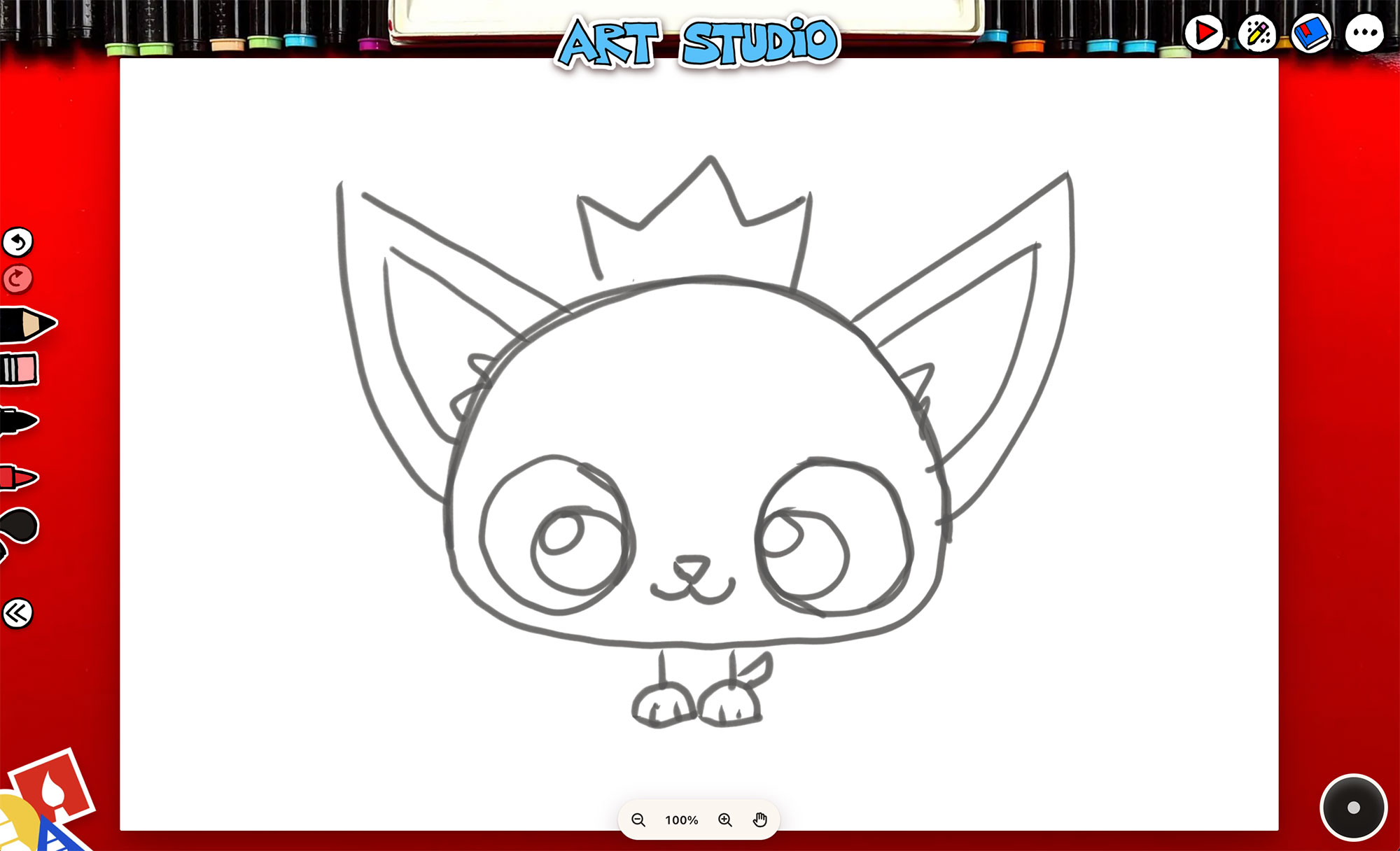
Step 2: Fix mistakes with the eraser
Made a mistake? Grab the eraser and erase any lines you don’t want to keep.
Here’s a little secret about our eraser: it only erases pencil. It won’t touch marker, which is exactly how it works in real life. So sketch first, and don’t trace with the marker until you’re happy.
And if you ever want to undo anything, tap the undo arrow at the top of your supplies. On a tablet or phone, you can also just tap the paper with two fingers to undo, and three fingers to bring it back.
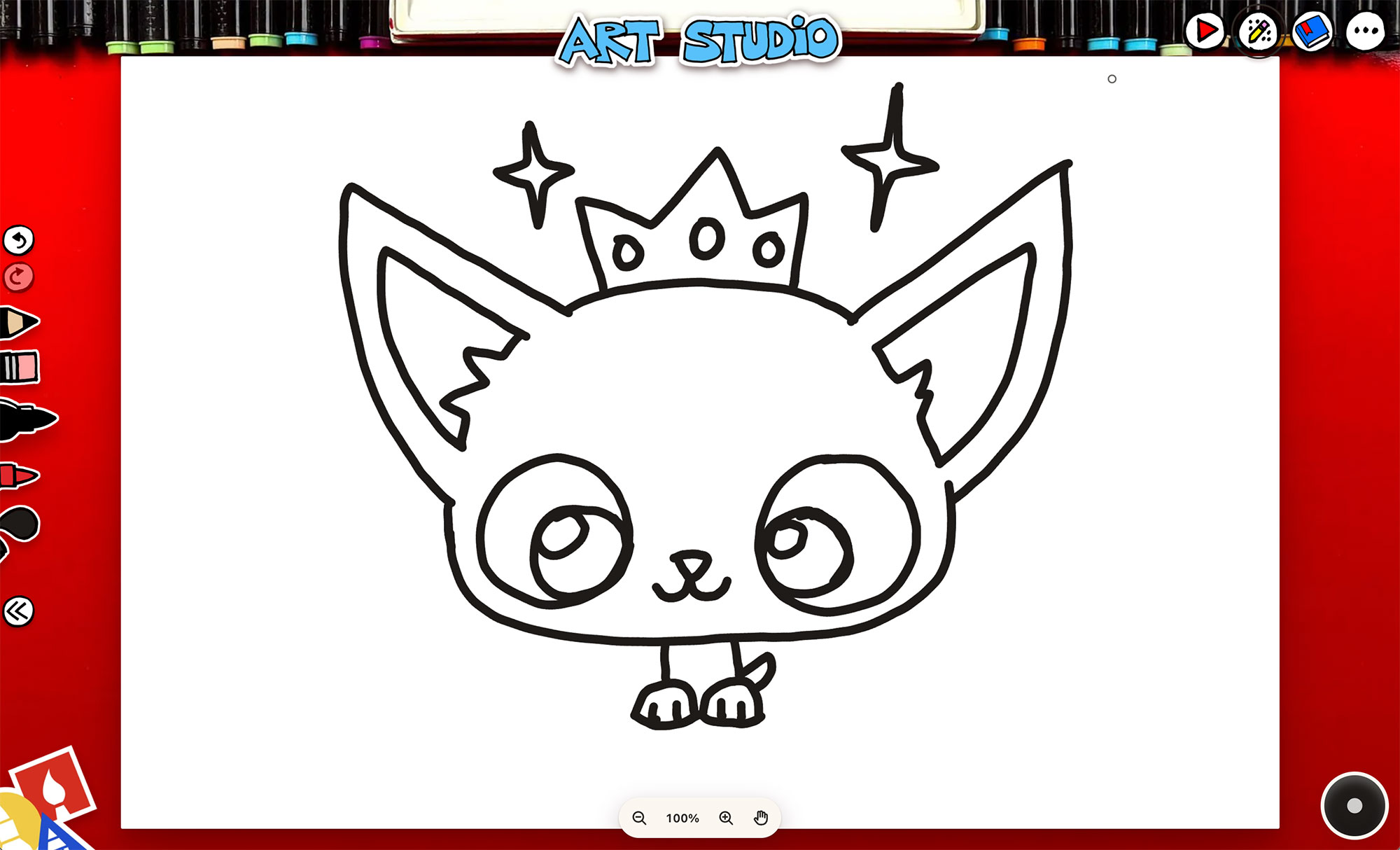
Step 3: Trace with the black marker
Once your sketch looks good, switch to the black marker and trace over your lines. This is the step that makes your drawing pop.
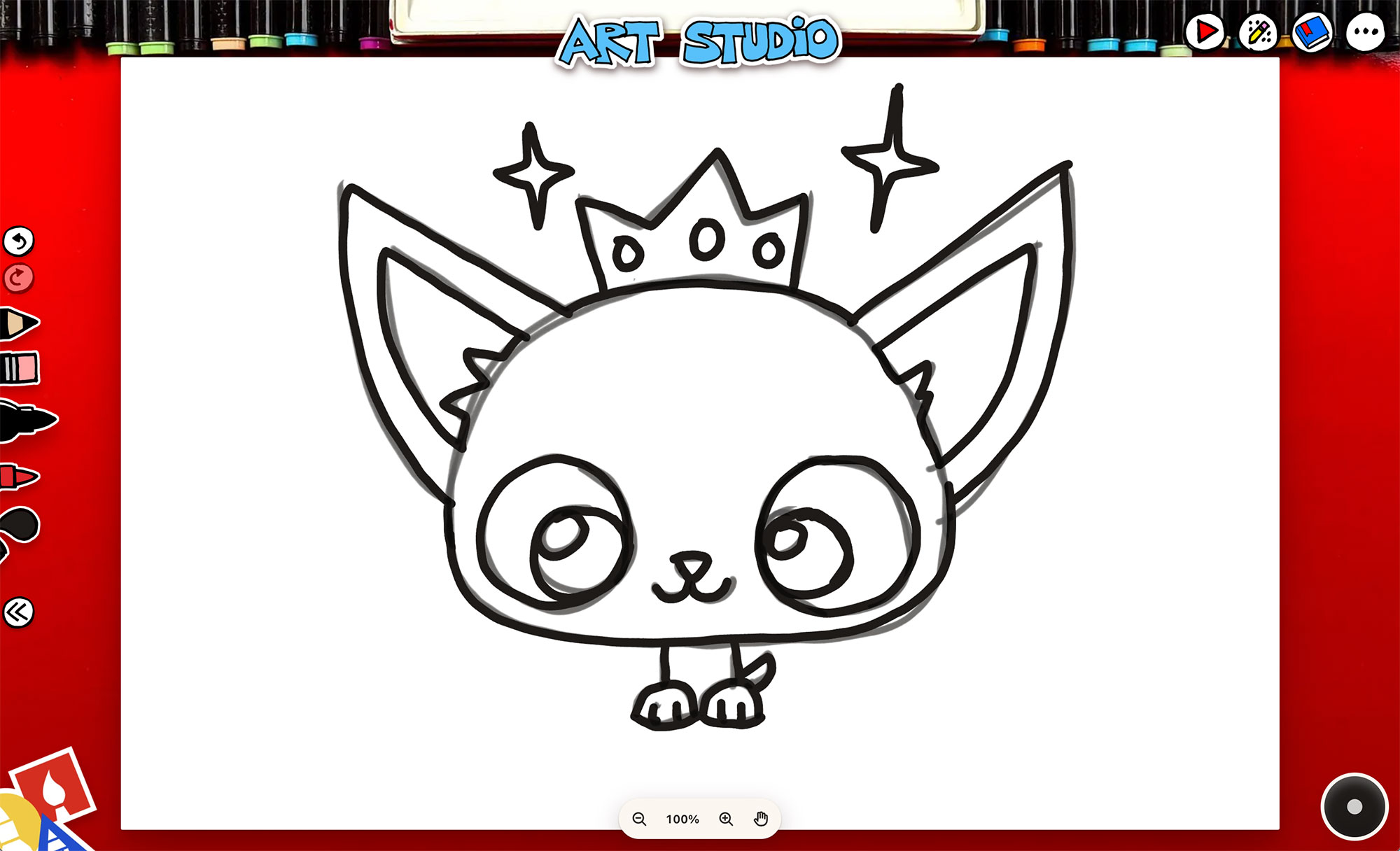
Now here’s my favorite button. See the little pencil with sparkles at the top right? That’s Fade the Sketch. Tap it, and all your pencil lines disappear, leaving just your clean marker drawing. It’s like magic.
Step 4: Color with the markers
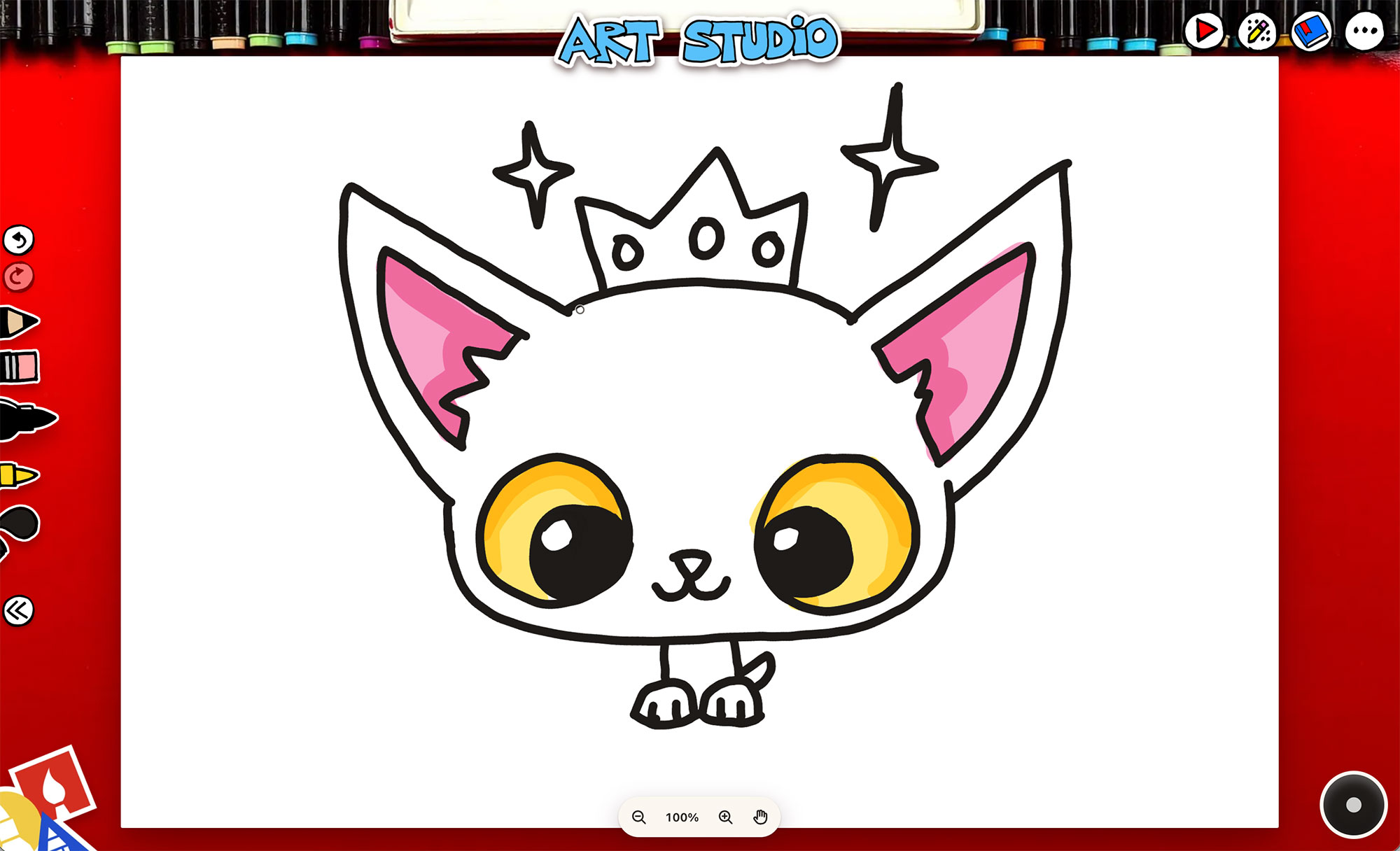
Pick up the color marker and tap the big dot in the bottom right corner. That opens your marker set. We gave you 24 colors, and a slider to make your marker thicker or thinner.
Our markers act like real markers. Color over a spot once and it’s light. Color over it again and it gets darker. You can even layer two different colors on top of each other to mix them. Try it!
Step 5: Fill with the paint bucket
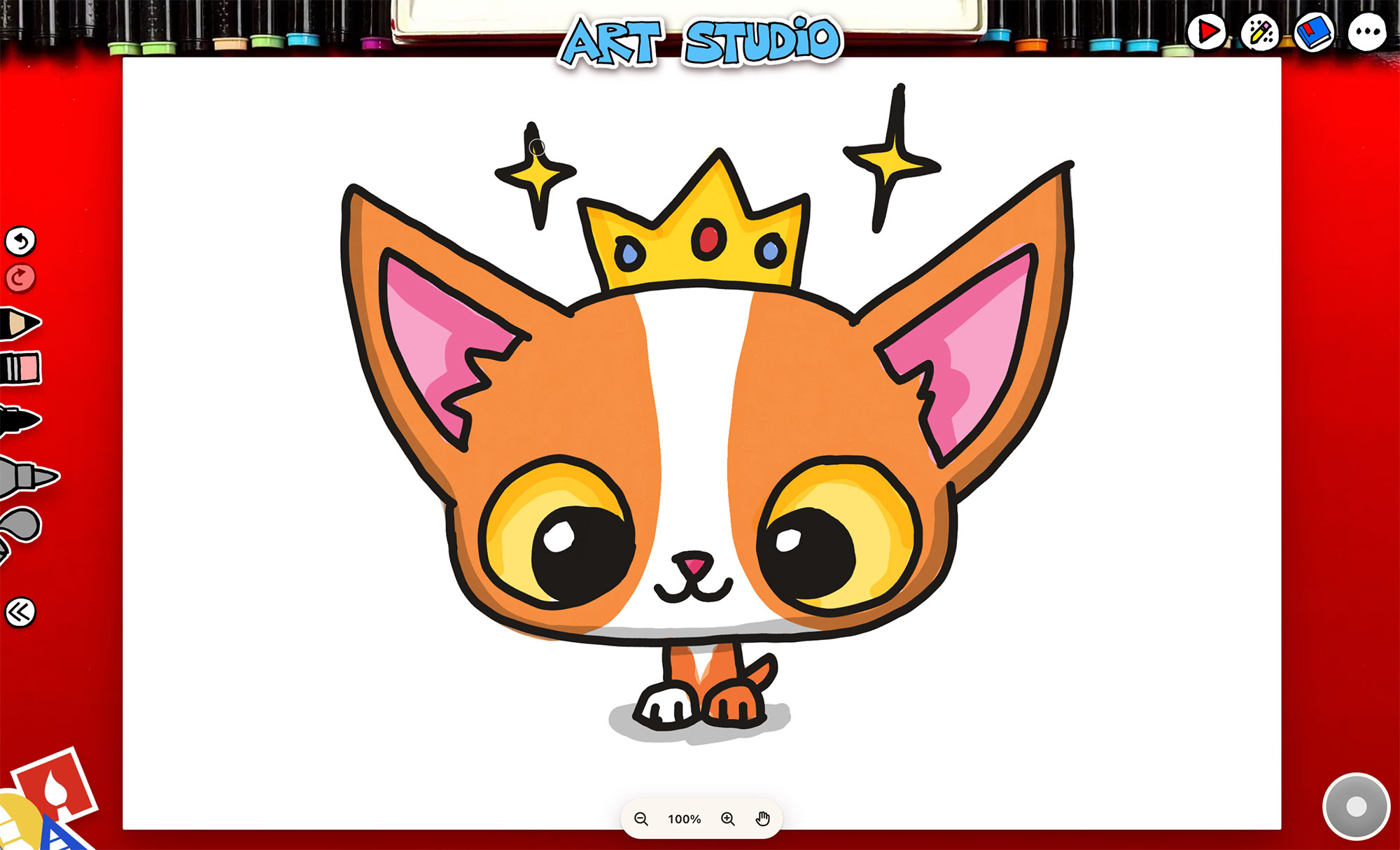
The paint bucket is the fastest way to color a big area. Tap it, then tap inside a shape, and the whole shape fills right up to the lines.
The paint bucket has a trick. It fills with whichever marker you used last.
- Use a color marker, then grab the bucket: it fills with that color and stops at any line.
- Use the black marker, then grab the bucket: it fills solid black, but only inside a shape made of black lines. Great for filling in hair, shadows, or big black eyes.
Draw along with a lesson
This is the part I’m most excited about. Tap the play button in the top right corner and you’ll see a shelf of our lessons.
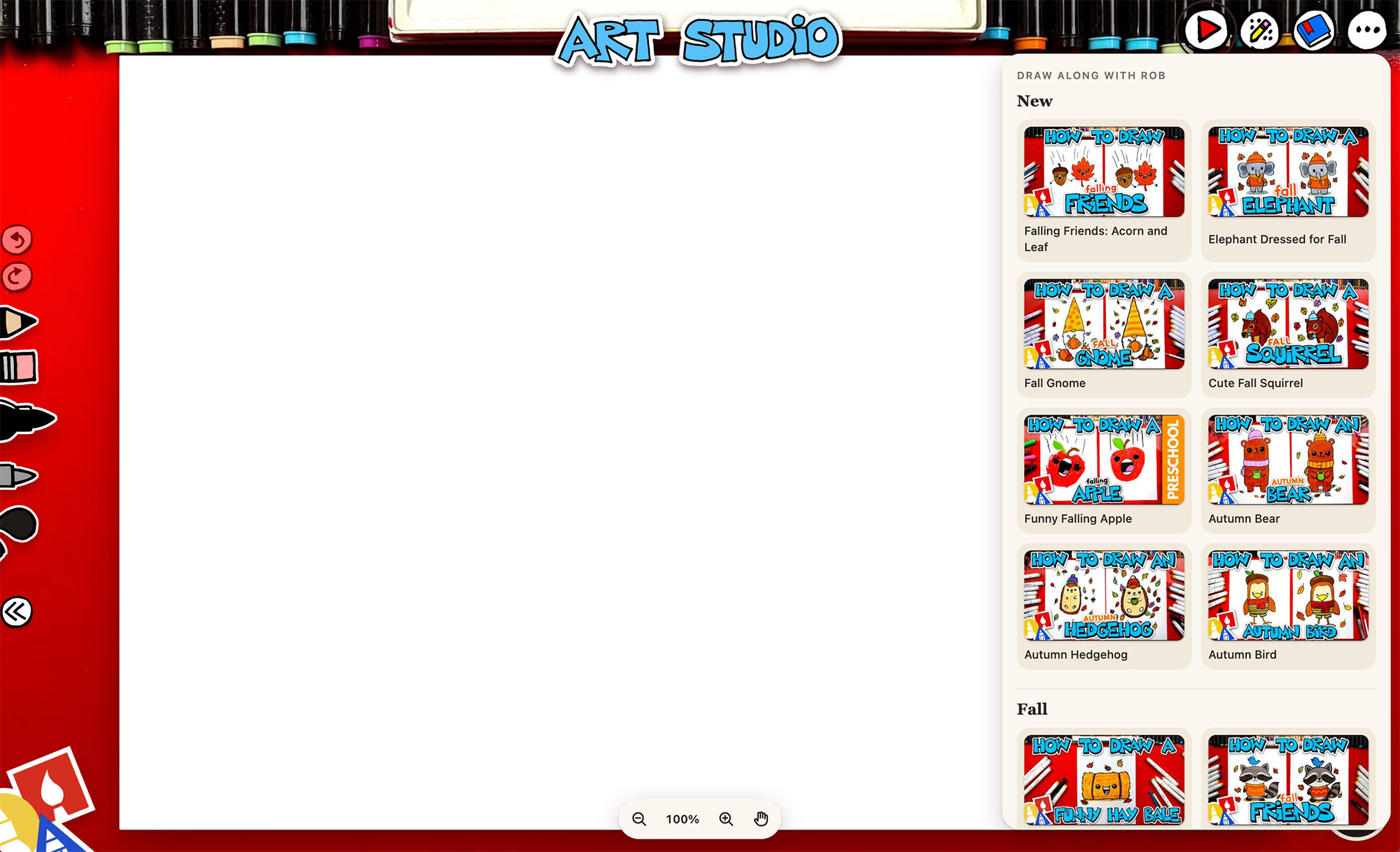
Pick one, and the video opens in a little floating window right over your paper. You can drag it anywhere you want and resize it by its corner. Then just draw along with us, the same way you would at the table. Pause the video, draw a step, play it again. It’s the closest thing to drawing next to us that we’ve ever made.
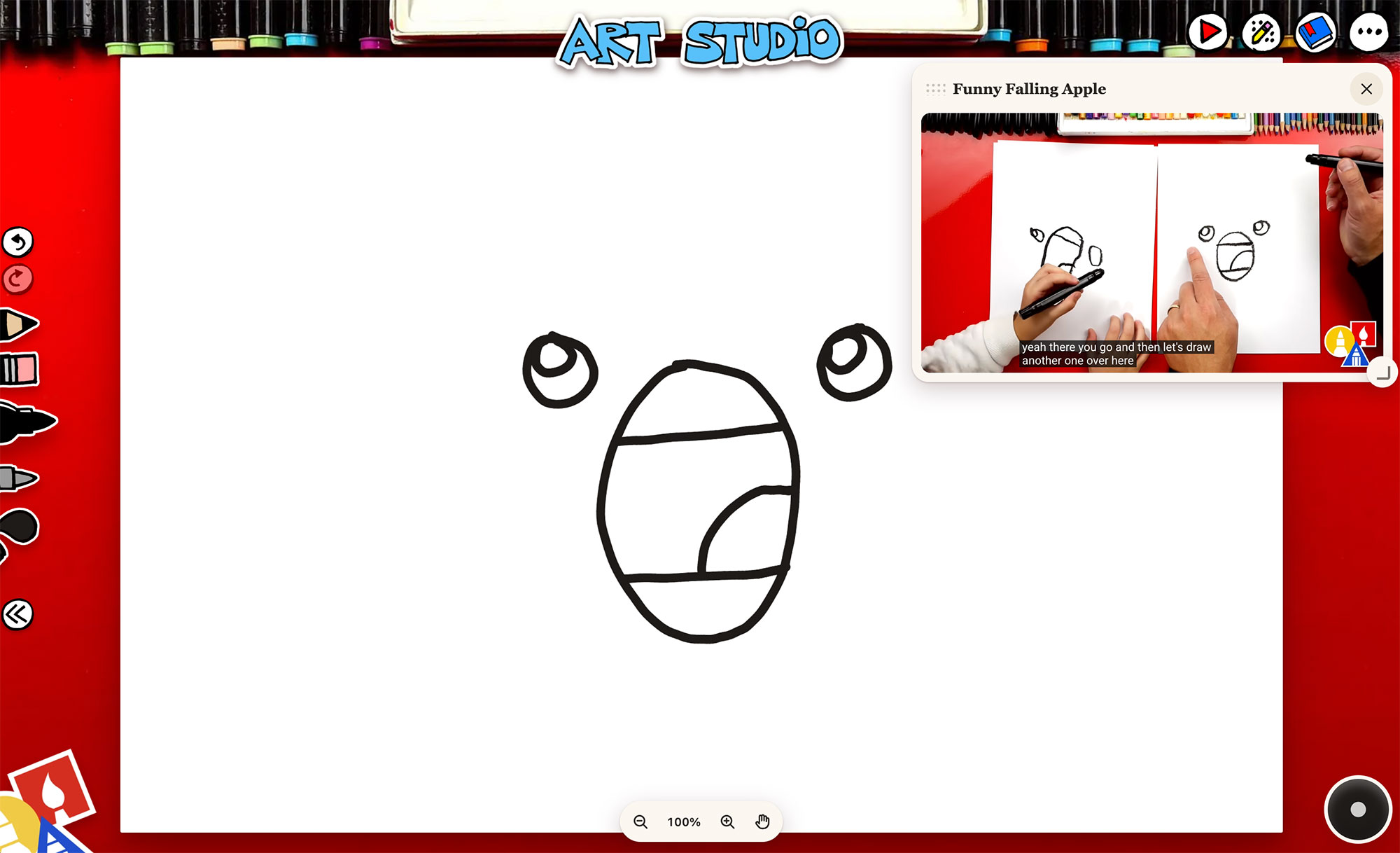
We’ll keep adding new lessons, so there’s always something fresh at the top.
The Learning Table
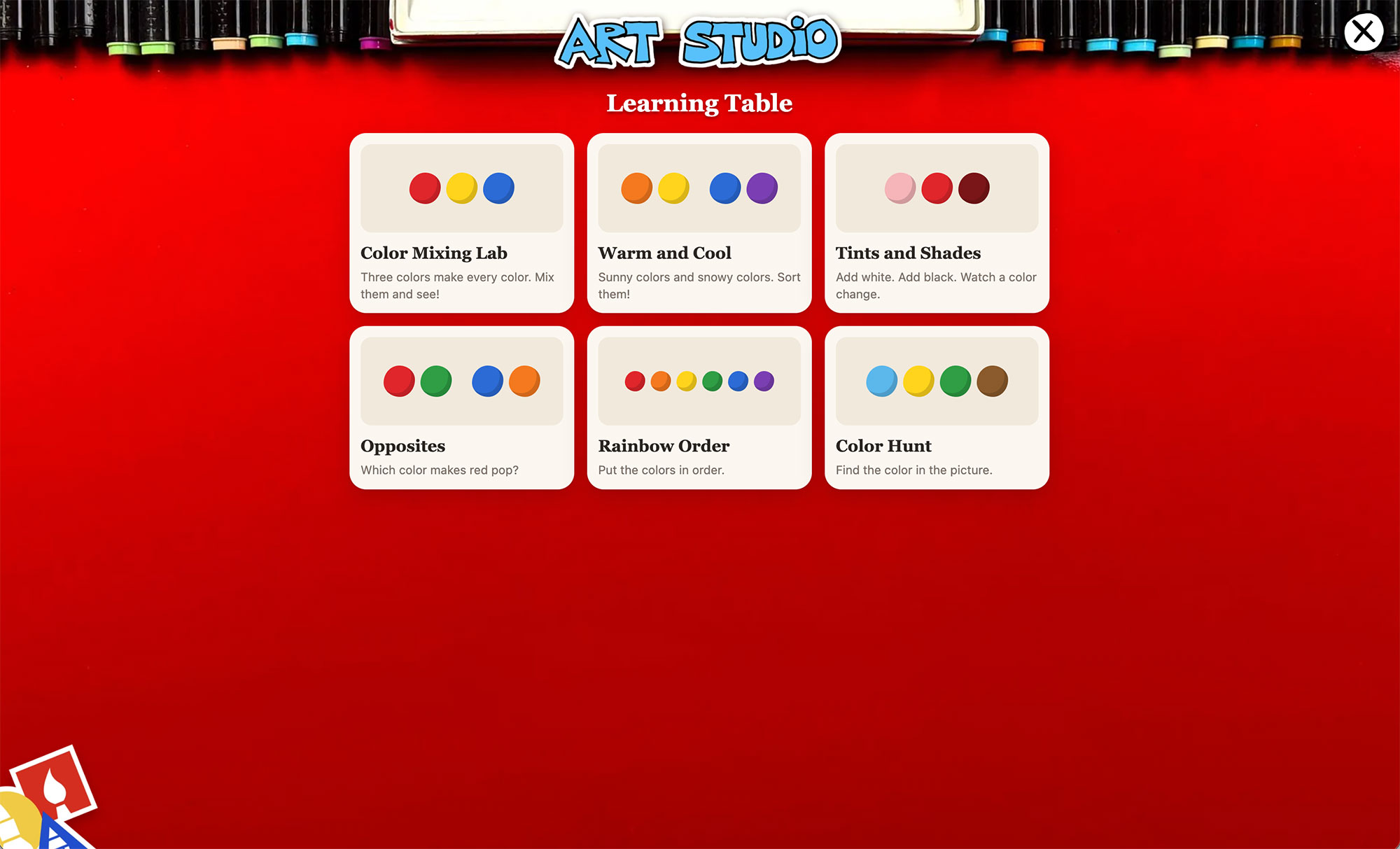
See the book button next to play? That’s the Learning Table. Tap it and the paper slides away to reveal six little art games about color.
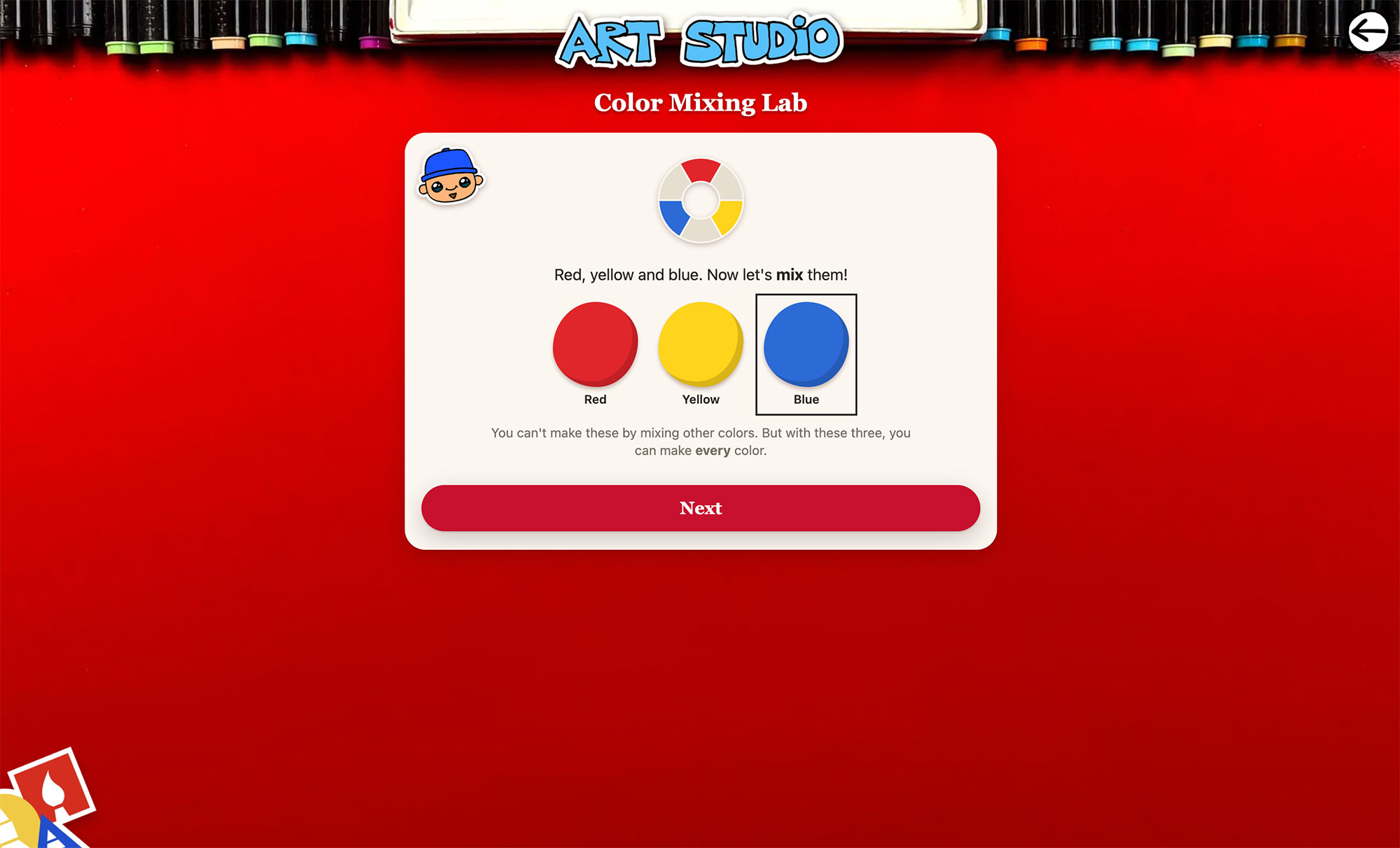
Start with the Color Mixing Lab. You’ll meet the three primary colors, mix them in a bowl to discover the secondary colors, and then take a quiz where I ask you to make purple or orange. When you finish, you get a star on your card, and a button that lets you draw with the exact colors you just made.
There are games about warm and cool colors, tints and shades, complementary colors, rainbow order, and a color hunt that reviews everything. Nobody ever gets a “wrong” in these games. You just try again, same as our lessons.
A few more things you should know
- Your drawings save by themselves. Close the app and come back tomorrow, and your drawing is right where you left it. Tap the dots menu in the top right and choose My drawings to see all of them.
- Save a picture sends a finished drawing to your Photos (or your Downloads on a computer) so you can print it or share it.
- Add it to your Home Screen. On an iPad or iPhone, tap Share in Safari and choose Add to Home Screen. Then it opens full screen like an app, with no browser bars.
- It’s safe for kids. No accounts, nothing to sign up for, and nothing you draw ever leaves your device. We only count visits so we know how many kids are drawing.
- Beta. We’re still working on this app; we’re fixing little bugs and adding new features. If you ever run into a bug, try refreshing the page, and usually things will work again. Feel free to give us feedback and suggestions.
That’s the tour! Go to artforkidshub.app, grab a pencil, and show us what you make. We’d love to see your drawings, so tag us on Instagram or send them to support@artforkidshub.com.
Happy drawing!
Rob
